Look Inside
A Look Inside FillBetter
A walkthrough of the real process forms are sent through, showing document intake, workflow tracking, step-level controls, and the full processing pipeline.
Document Queue
Dedicated Buckets
Incoming forms are sorted into one of three buckets: Patient, Workers Comp, or General with each routed through its own unique, pre-processing step. Status, step progress, and timestamps are visible across every document in a single console.
- Patient Supplied FormsCollect Payment (SMS) & ProcessReturned to bucket
- Workers Comp FormsRetrieve case details (custom tuned) & ProcessReturned to bucket
- General FormsInfo Retrieved from Patient & ProcessReturned to bucket
Workflow Graph
Every Step, Tracked in Real Time
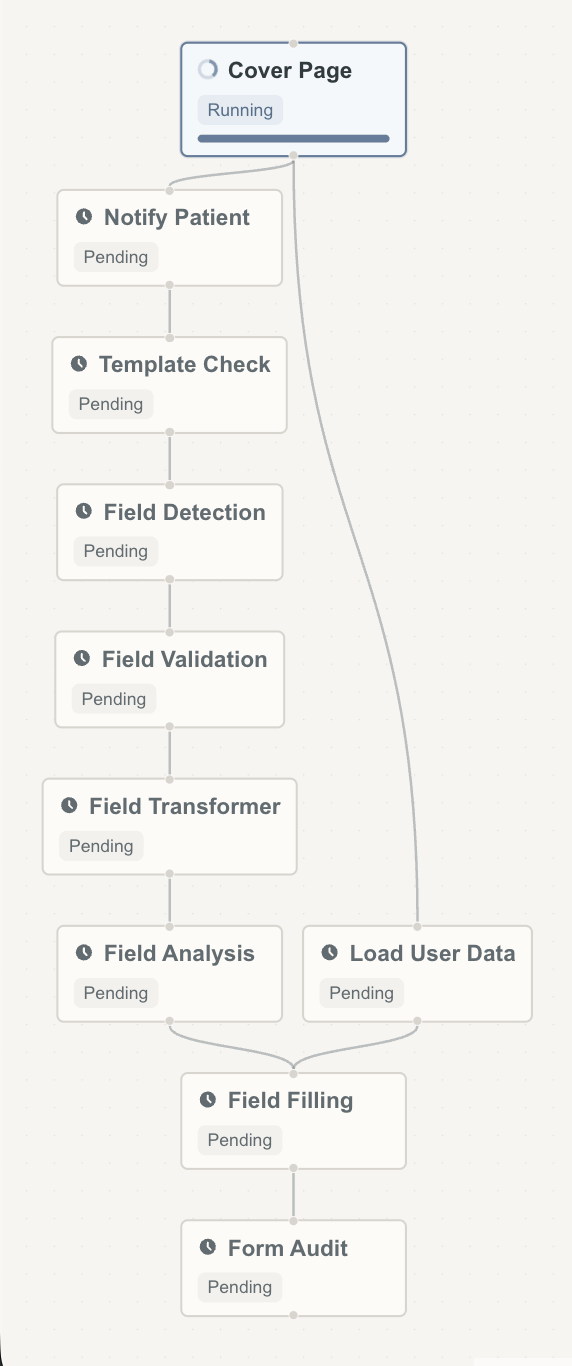
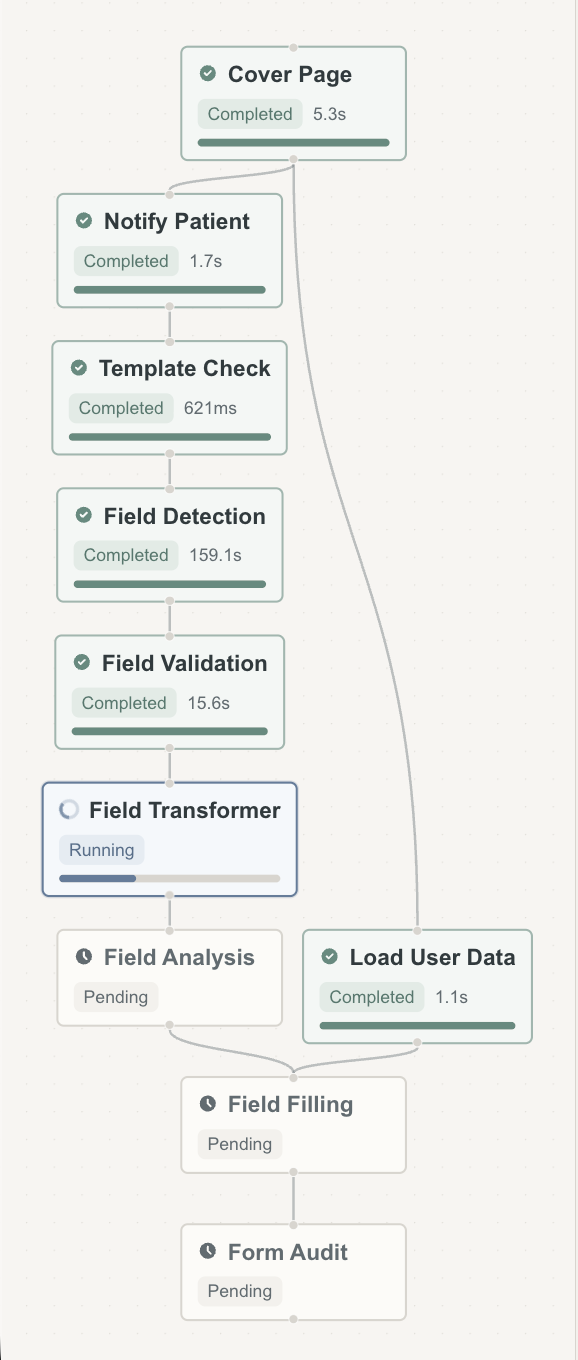
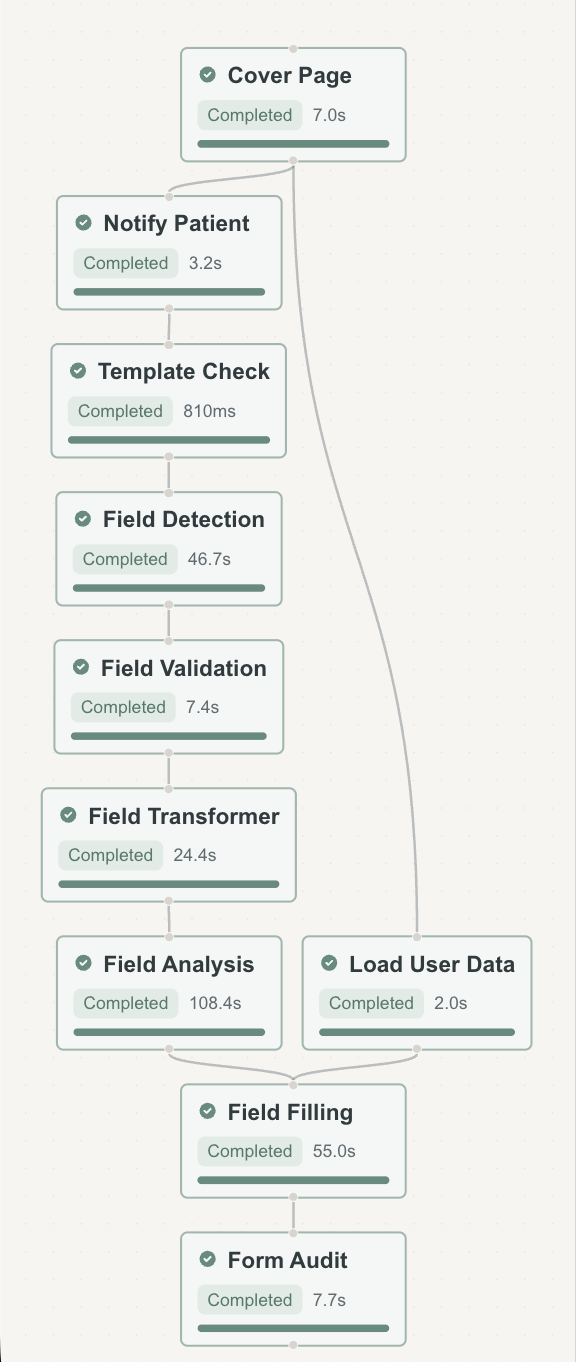
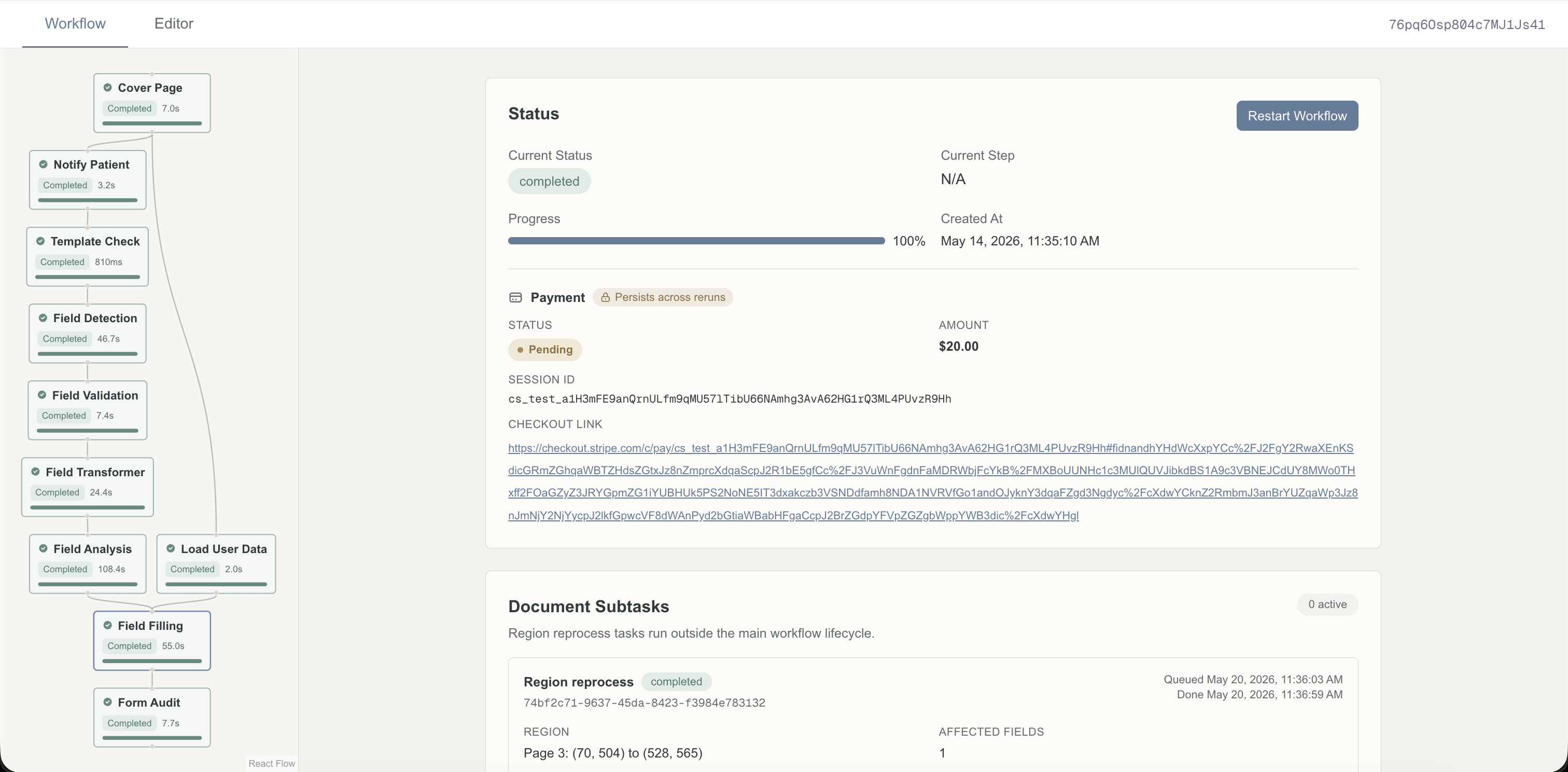
Each document has a live workflow graph showing every step in sequence: Cover Page, Notify Patient, Template Check, Field Detection, Field Validation, Field Transformer, Field Analysis, Load User Data, Field Filling, and Form Audit.
EMR Integration
Forms Processed and Accessed with EMR Context
FillBetter connects to your EMR using your practice's existing credentials. No new accounts or setup required. Before processing, the system automatically pulls in the relevant patient context; Then it posts the completed form back to the chart with a secure review link.
Patient Context Retrieved
Secure Editor Access
Once a form is processed, FillBetter posts a secure edit link directly to the Athena action note on the document. Staff click it from their existing Athena worklist and land straight in the FillBetter editor, no separate login needed.
Step Detail
Full Visibility Into Each Processing Step
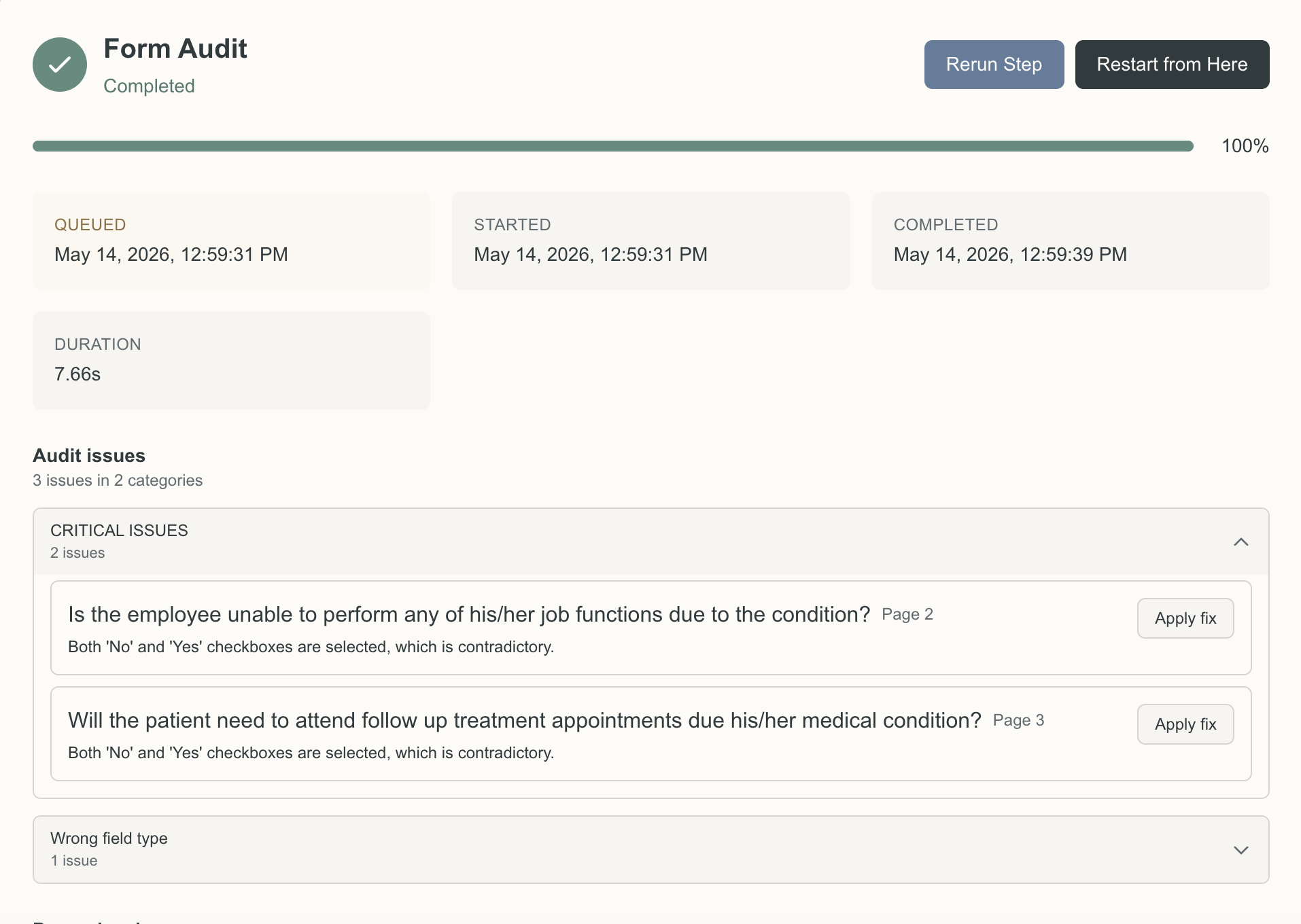
Clicking any step opens the full detail view: status, queued/started/completed timestamps, duration, and the raw step data output. We can rerun a single step, restart the pipeline from that point, or download the filled PDF once the Form Audit step completes.
Field Detection & Editing
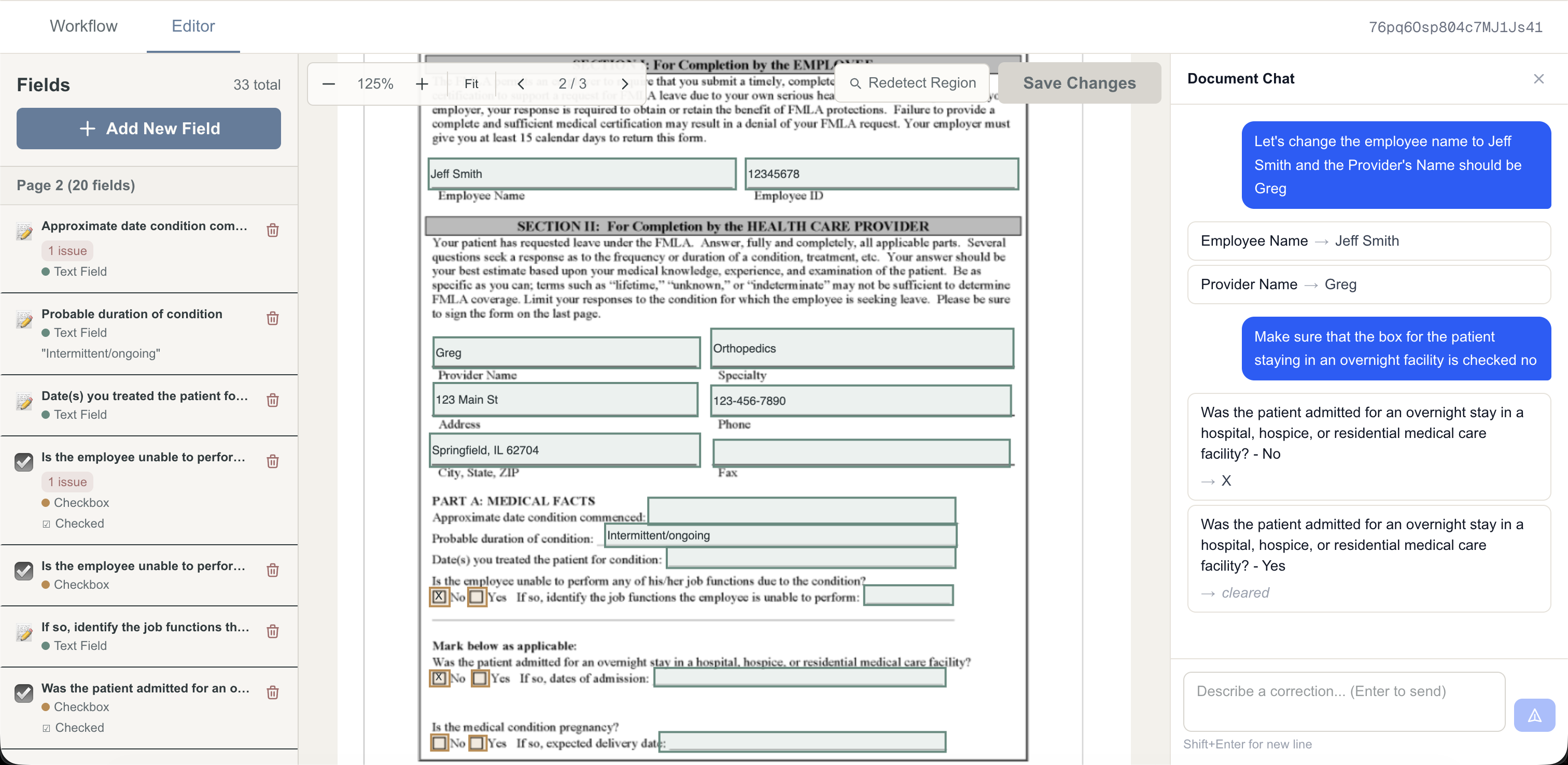
Every Field Found, Labeled, and Editable
After detection runs, operators see every identified field in the sidebar: label, current value, type, and position on the page. Fields flagged with issues are surfaced immediately. Any value can be reviewed or corrected before the document moves to filling. This includes field positioning, number of fields, field name, and of course the filled data in the field.
AI Field Assistant
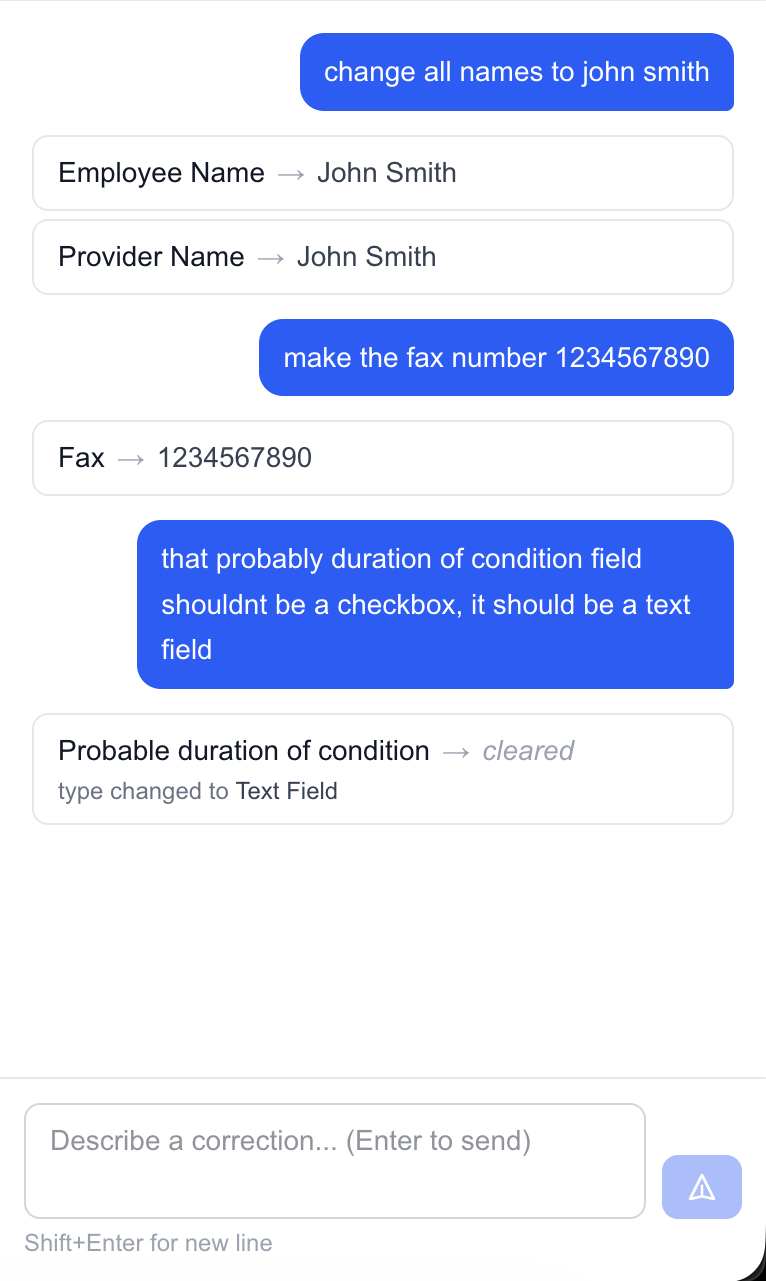
Describe Changes, See Them Applied
The field editor includes a built-in AI correction panel. Give a brief description as to what needs changing, be it a field type, a filled value, or several edits at once, and the assistant handles the rest. The sidebar then shows any and all edits the field editor made. Each response renders as a card summarizing exactly what changed.

Form Audit
Potential Issues, Caught & Shown
Our Form Audit step also informs us of potential issues. Showing potential missing fields, incomplete data, and other anomalies by category so operators can review and apply fixes before the document leaves the pipeline.